Finding features in iPhoto for iOS

In delivering software user interfaces, there has always been differing lines of thought. One major thinking is to provide absolutely everything in full view, regardless of usefulness or practicality. This allows users to be aware of everything that the software is capable of doing, providing them with complete visible access to its features. Another is to only show the features that are most likely to be used and hiding the rest for users to discover as they become more familiar with the software.

The user interface in iPhoto for iOS seems lie somewhere between the two. Visually it’s a bit of a clutter but it also still has hidden features not accessible through the on-screen buttons and icons. Unfortunately those hidden features are very unlikely to be discovered unless people had seen the on stage demo when the app was introduced or that they read reviews and guides for the app on the Internet.

Apple has had a habit of hiding operational functions but in most cases, there are two ways to access them. One is through the standard visible interface elements such as buttons or other visual cues, another is through keyboard shortcuts on Macs or touch gestures on iDevices. Rarely would an operational feature be accessible only through one non-obvious mean of access and when it is, it tends to be pro features that the majority of users won’t likely to use in the first place.

Lukas Mathis put forward a number of hidden actions on iPhoto for iOS that may seem intuitive for Apple’s engineers and designers but not so much to unsuspecting users. Apple’s apps are supposed to be intuitive for new users but some of these hidden actions seem like they’re not meant to be discovered. Mathis has a pretty damning sentence for iPhoto for iOS:

Almost nothing you learn in iPhoto can be applied to Photos, or to any other iOS app. In fact, being proficient at using iPhoto will probably make you worse at using Photos.

Samsung lied in its latest Galaxy Note video

Samsung Mobile USA put up a video this week showing several tasks that supposedly the iPhone can’t do but can be easily done on a big ass 5-inch Galaxy note with a stylus. A STYLUS! How 1994.

Of course, when Tap Magazine found out about it, they went to work on rebutting every point in the video by doing everything it said the iPhone can’t do, on an iPhone. Including shooting and editing the video.

Samsung lied in its latest Galaxy Note video

The multitasking bar in iOS = browser history

Fraser Speirs:

you do not have to manage background tasks on iOS. The system handles almost every case for you and well written audio, GPS, VOIP, Newsstand and accessory apps will handle the rest.

There is almost absolutely zero need to manually kill the apps listed in iOS’s multitasking bar as it’s not a list of active apps but a list of recently used apps. It’s no different than if you had opened your browser and go to the history list. Apps listed there are not active. A few exceptions to this case of course exists such as when an app hangs but it doesn’t mean you have to clear the bar every time. It’s not like you clear your browser history regularly do you? 

The blog post is not a particularly long one, but for the short-attention span crowd, go straight to the summary section.

Even the Geniuses at Apple’s Genius Bars still get this wrong.

The multitasking bar in iOS = browser history

Major iOS security bugs fixed in latest update

Not only did the Levi’s update of iOS (I’m gonna call it that since it’s 5.0.1) bring you better battery life, adds multitasking gestures to the first iPads, resolves bugs with Documents in iCloud and improves voice recognition with Australian accents, it also closed the security bug that was publicly exposed by Charlie Miller a few days ago which cost him his Apple developer account.

Other fixes: iPad 2 passcode security lock bypass and removing DataCert as a trusted certificate provider.

Major iOS security bugs fixed in latest update

shortformblog:

Reuters ran this photoset of Steve Jobs mugshots that really shows the stark decline in Jobs’ health over the years. Good luck, chairman of the board.

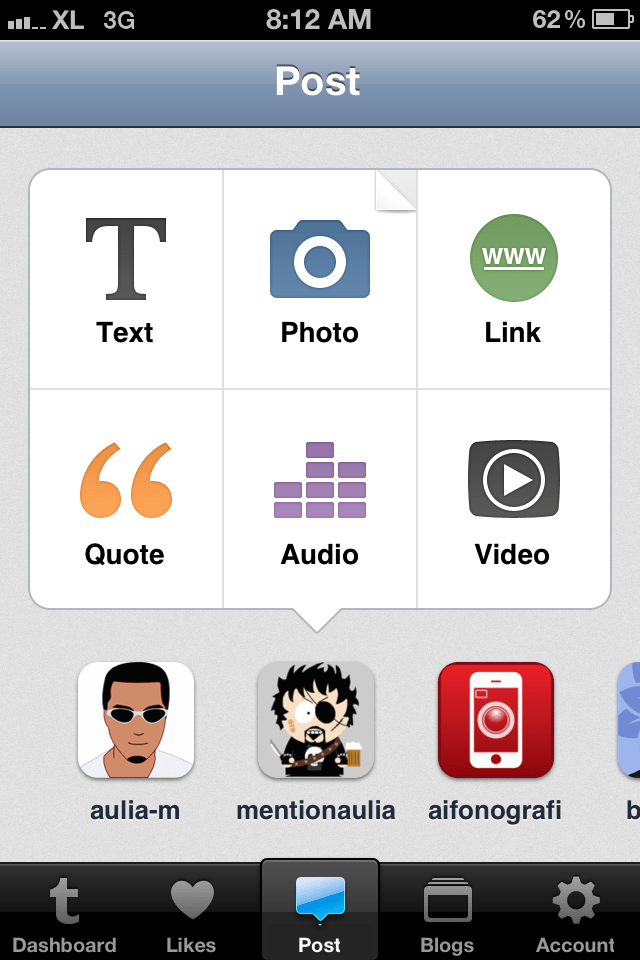
Today Tumblr rolled out a completely rewritten iPhone app. Gone is the two panel interface replaced by a tabbed interface that’s becoming more and more common on recent iOS apps and at a glance would remind you of Instagram. The center tab is the primary activity tab for posting content with options to choose which Tumblr account to post it from.

The new app introduces post settings on the composition screen, accessible by swiping the screen to the right. While on the post settings page, swiping to the left takes you back to the composition page.

Due to the way iOS apps are traditionally designed, it’s very tempting to tap on the top left button on the screen where the back/return button is usually located, to go back to composing a post. You don’t want to do this as that position is used by a cancel button that thankfully prompts you with an option to save or clear the post instead of abandoning it outright.

On the settings page, Tumblr finally adds a custom tweet option so now tweets don’t need to come out looking like a mess.

Now that there’s a tab for Likes, you can look at all the posts that you’ve marked on Tumblr directly in the app without having to go to the website on a desktop, notebook, or tablet computer.

Tumblr now allows account creation right on the app as well as reading and replying to messages, recognizing the fact that having to go to the website to do all this is becoming tedious and that for a lot of people, the mobile device is the primary interface to the Internet.

Overall, the app is now much more comprehensive, more usable, and more practical with an interface that makes it easier for you to post more frequently to all the multiple Tumblr blogs that you may have.

More and more tweets from iPhone or Android apps in my timeline. Last year almost all comes from Blackberry apps. Shift happens, RIM.

Four things we’d like to see in the next iOS

Widgets: I’m not too hot on this, not a big fan of widgets getting in the way on the homescreens. Prefer to see Dashboard style widgets where you double tap the homescreen to see the activity dock and you find widgets on the unused space above it. And you can swipe that unused space sideways to see more screens.

Settings: This is smart. Shortcuts for the most used Settings item acting like folders to reveal the options available for it.

Notifications: Nice. Could work with my widgets idea, combined to increase the use of the two layers of screens. The thumbnail view of the app would be a cool option to have but it certainly would eat up more processor cycle and memory. There’s Mobile Notifier for jailbroken iPhones and its developer was recently picked up by Apple to work in Cupertino.

Favorite Friends: Useless as far as my usage is concerned. I don’t contact people through their phone numbers that often so the phone app is one of my least used app. Hardly ever text them either. For those who still use the iPhone the traditional way though, it could be useful. Reminds me of Matt Gemmell’s Favorites app.

Just about everybody’s linked to this epic review of Color on the US App Store by someone who goes by the name Ghostmoth and you’re more likely to have read it since it went up a few days ago.

What’s the fuss? The fact that the team behind Color got $41 million in seed funding from a number of investors while the app so far has caused nothing but confusion among its users. TechCrunch is clearly obsessed by the startup, they’ve devoted a week’s worth of coverage to it.

Here’s the link to Mike Cohen’s original post on his discovery of the review but if you’d rather read it in its full glory, here’s a screenshot of the entire description from the App Store on iTunes on my Flickr account.

Creative writing has reached another high this past weekend.

Collection of Instagram apps

If you’ve been bitten by the Instagram bug like millions of people have or annoyed that you can’t properly view the Instagrammed photos on the web, you might want to check out this list of apps and services created using Instagram’s API.

For whatever reason the folks behind Instagram aren’t keen on the idea of taking the Instagram experience outside of the iPhone app and into the open web. The app’s not even available on any other platform, at least not for a while yet.

Visually it’s not a great list to look at but if you want to find out what Instagram oriented apps have people come up with, it’s worth checking it out.

Collection of Instagram apps